TrueTime Meetings™
Overview
TrueTime Meetings™ is a powerful application designed for real-time collaboration and video conferencing. This guide will walk you through the process of deploying and starting your first TrueTime Meeting.
Accessing TrueTime Apps
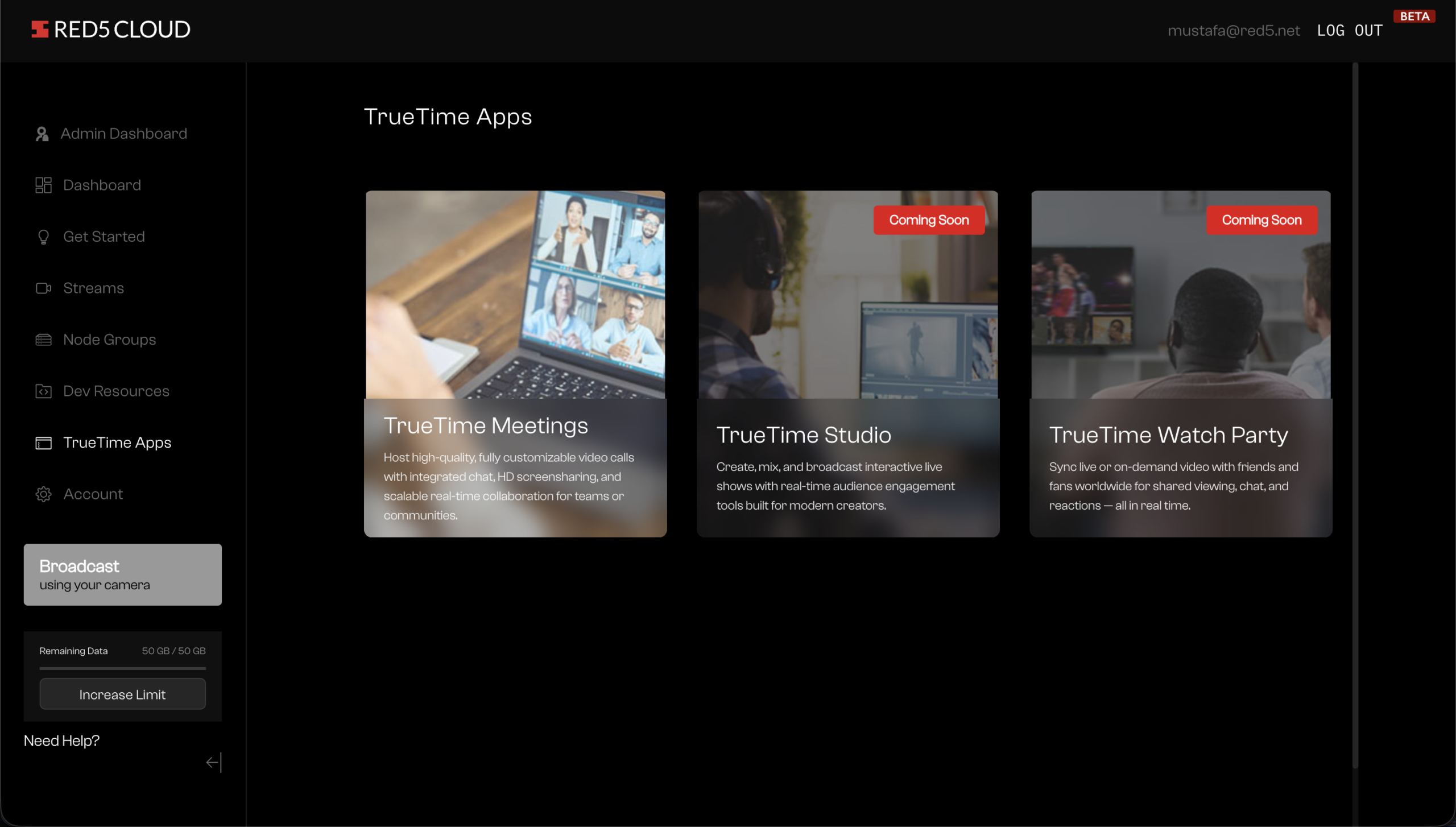
To begin, log in to your Red5 Cloud account. Once logged in, navigate to the TrueTime Apps page from the sidebar menu on the left.
Selecting TrueTime Meetings™
On the TrueTime Apps page, you will see various application cards. Locate and click on the TrueTime Meetings™ card.
Deploying the Application
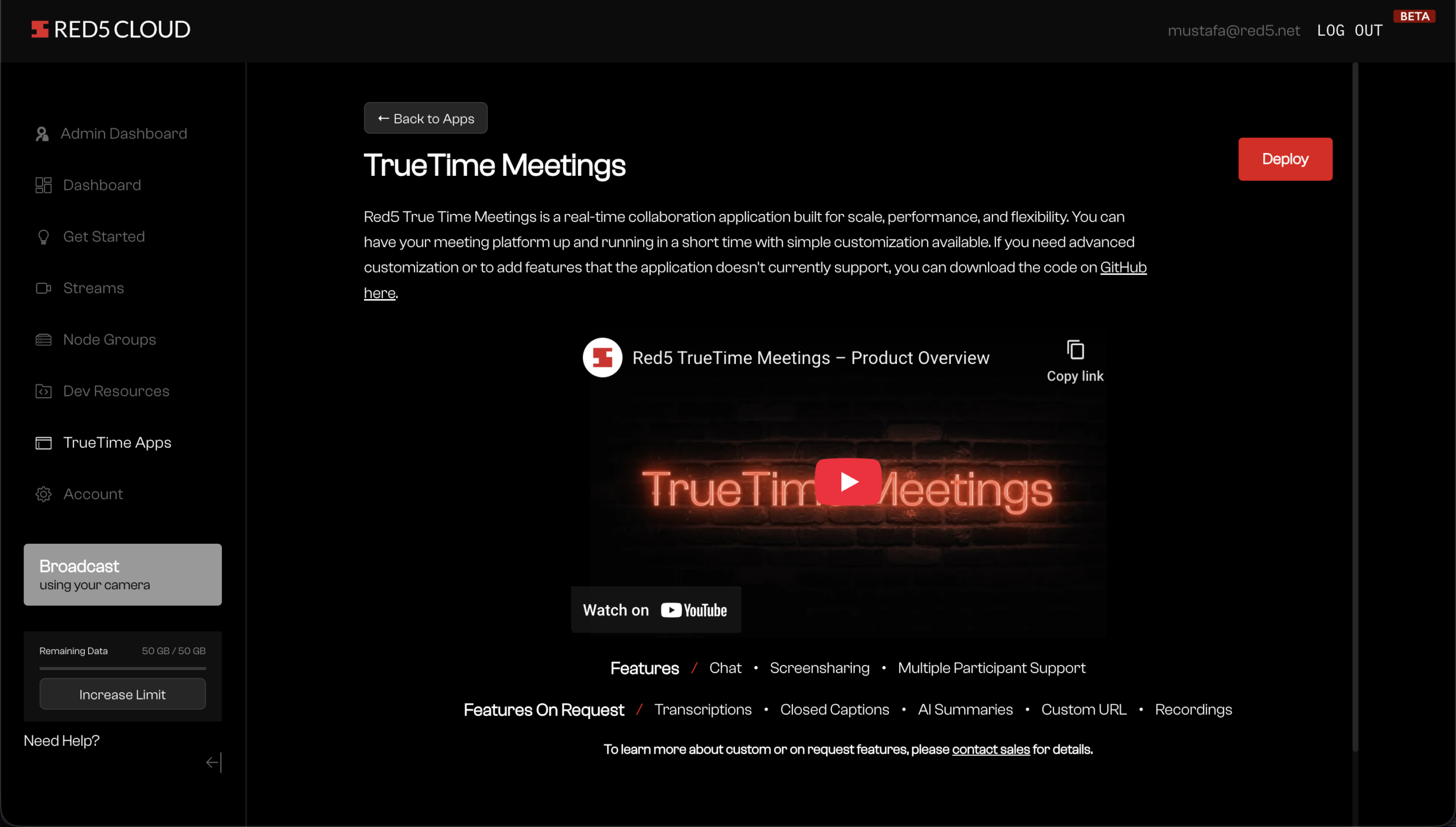
After selecting the application, click on the Deploy button to begin the setup process.
Customizing and Launching
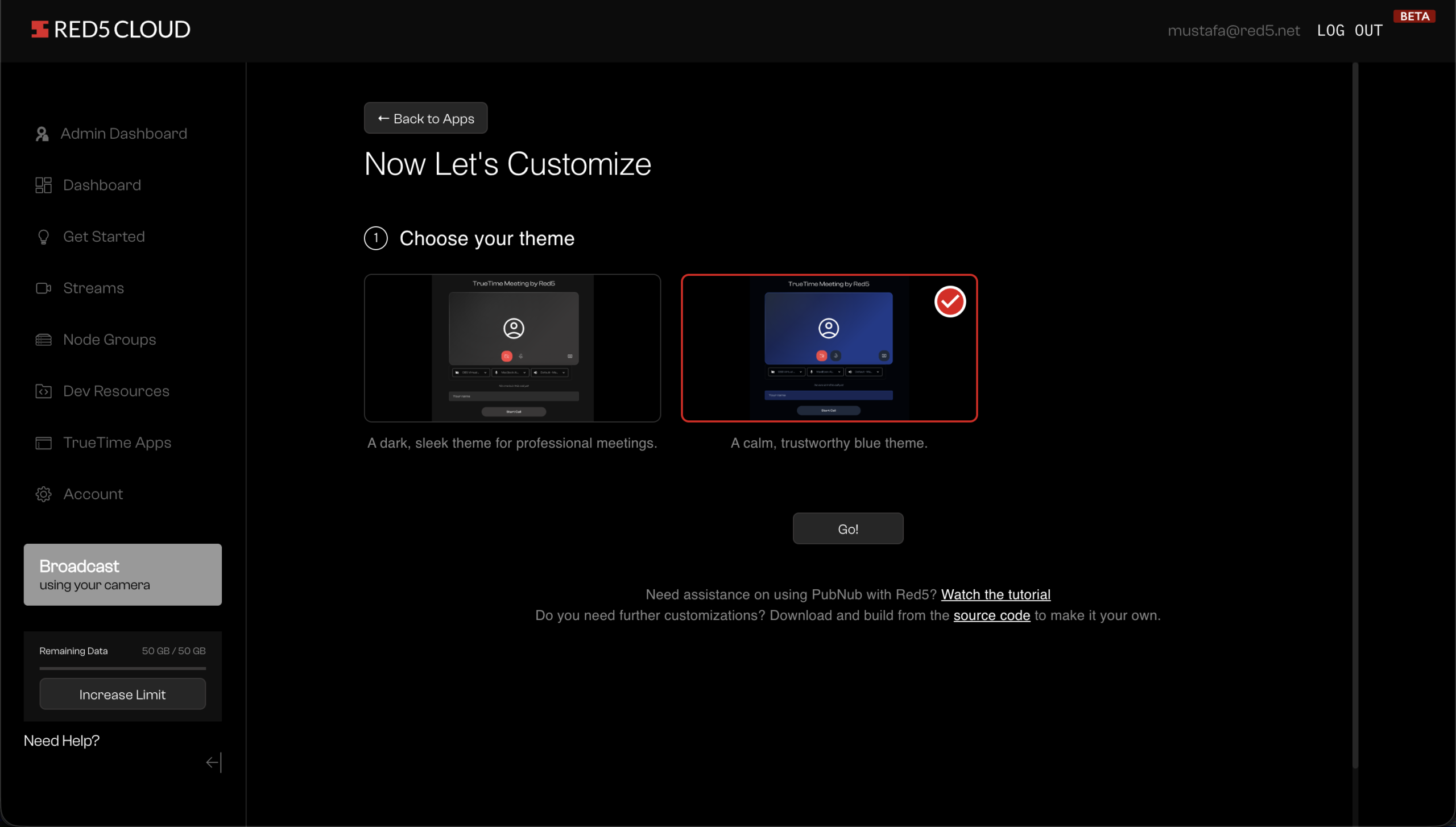
You can customize the application settings as per your requirements. Once you have finished customizing the app, click on the Go button to launch it.
Starting a New Meeting
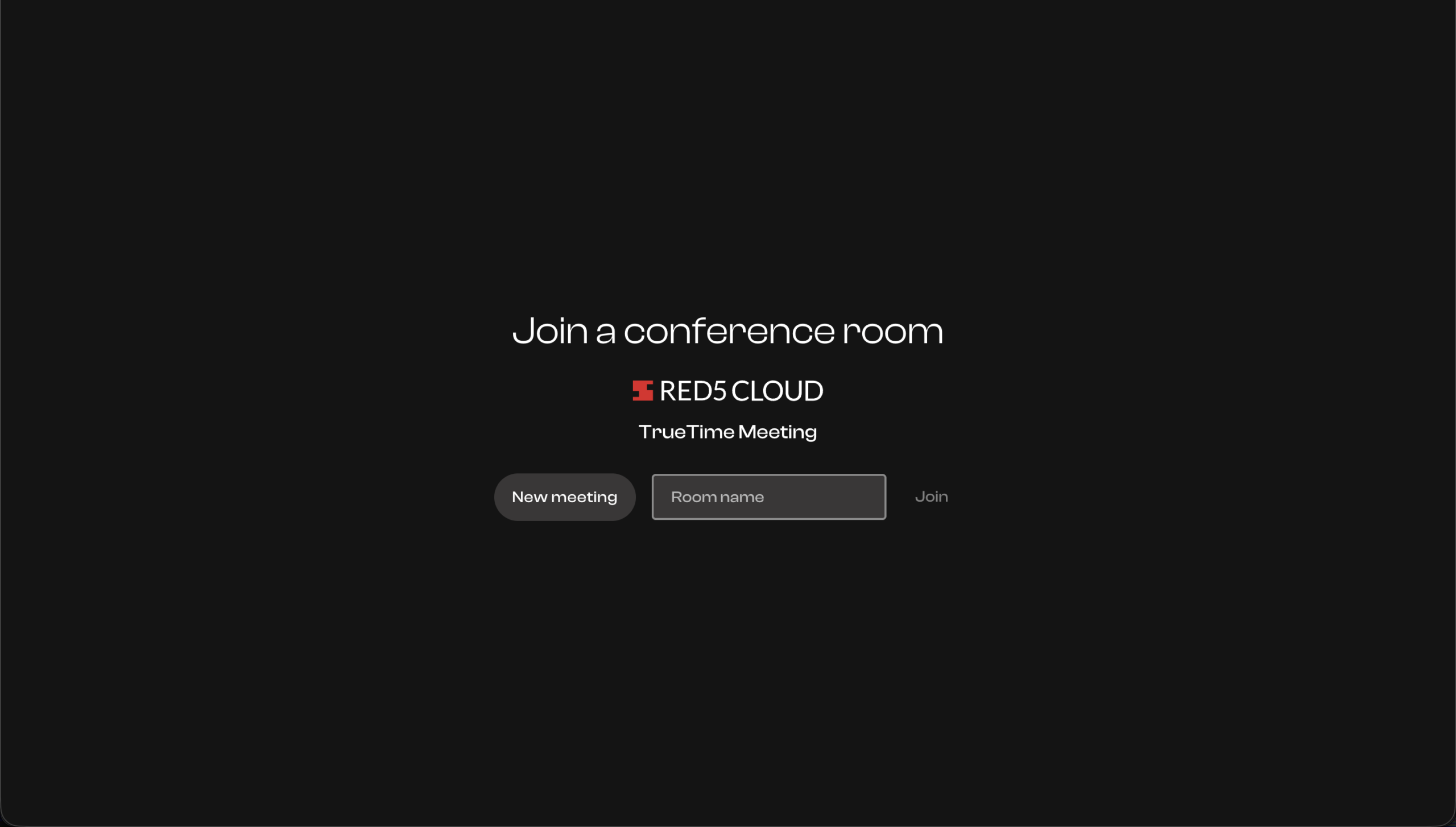
Now that your TrueTime Meetings™ application is ready, you can start a new meeting. Click on the New Meeting button.
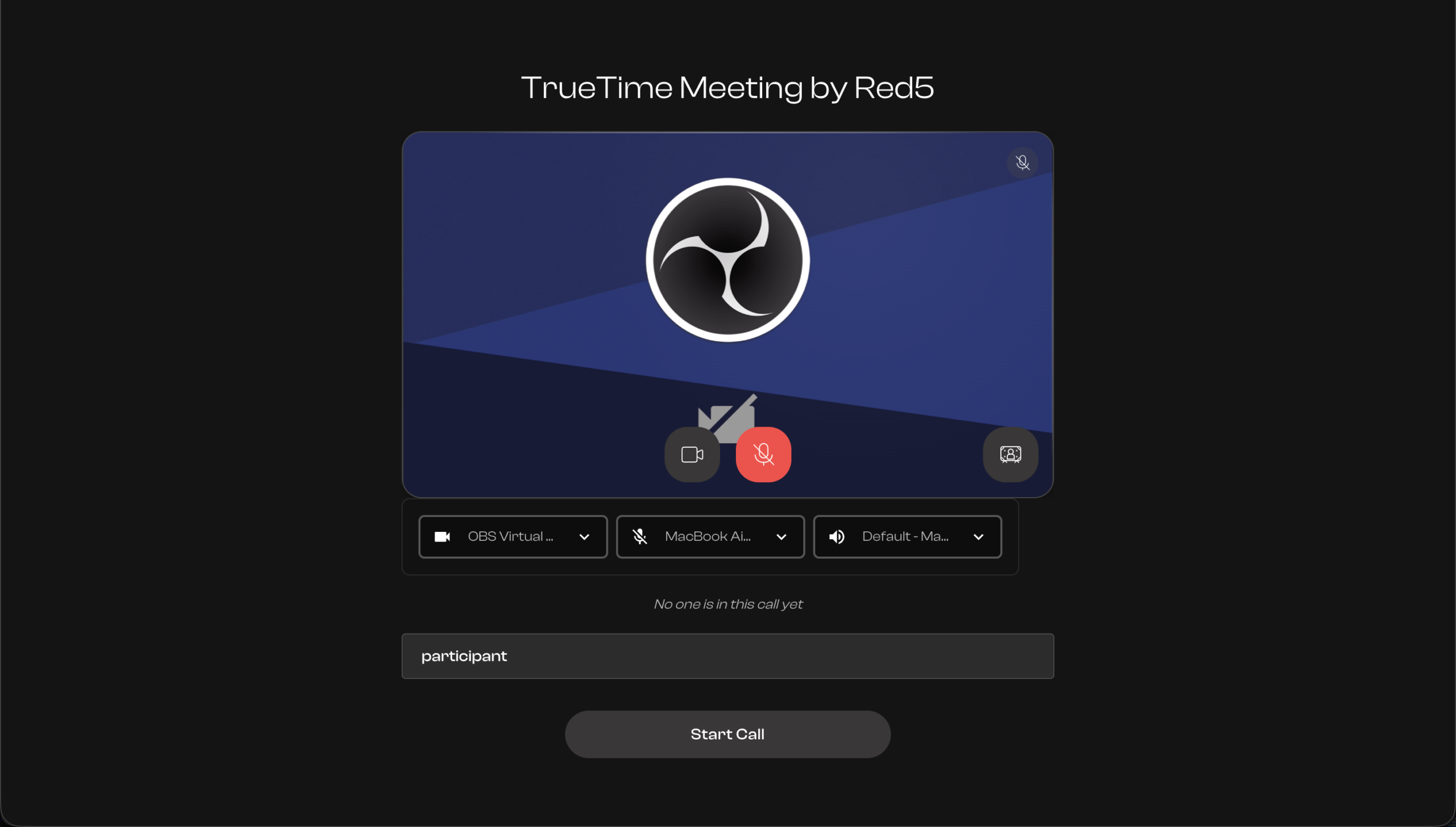
Meeting Setup
Before joining the meeting, enter your name and select your preferred camera and microphone settings.
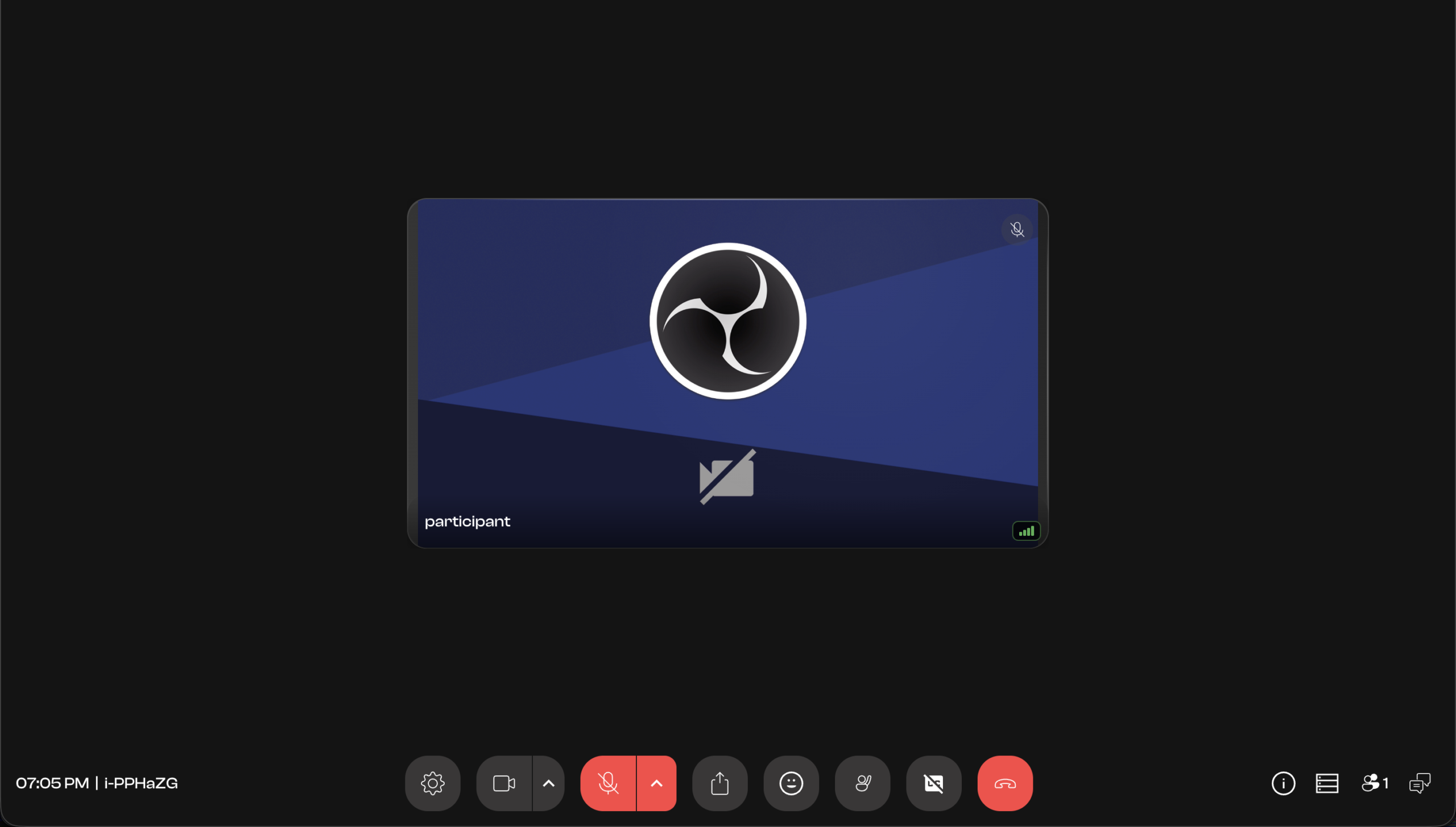
Enjoy Your Meeting
Once your setup is complete, you can join and enjoy your TrueTime Meetings™!
(Note: Use the interface to manage participants, share your screen, and collaborate in real-time.)