Generate and Add SSH Key
Generate Your SSH2-RSA Key Pair
The SSH key will be used for connecting to Droplets as the root user, including the Stream Manager 2.0 instance and Red5 Pro autoscaling nodes.
On Mac/Linux
- Open Terminal
- Run:
ssh-keygen -t rsa - Accept the default file path or choose a custom filename
(Enter file in which to save the key (~/.ssh/id_rsa):) - Enter a secure passphrase and confirm it
- Your private (
id_rsa) and public (id_rsa.pub) keys will be created
On Windows
- Download and run PuTTYgen
https://www.chiark.greenend.org.uk/~sgtatham/putty/latest.html - Click Generate and follow the on-screen instructions
- Enter a secure passphrase and confirm it
- Click Save public key → save as
red5pro_node.pub - Click Save private key → save as
red5pro_node.ppk - Keep these files in a secure location (recommended:
~/.ssh/)
Add SSH Key to DigitalOcean
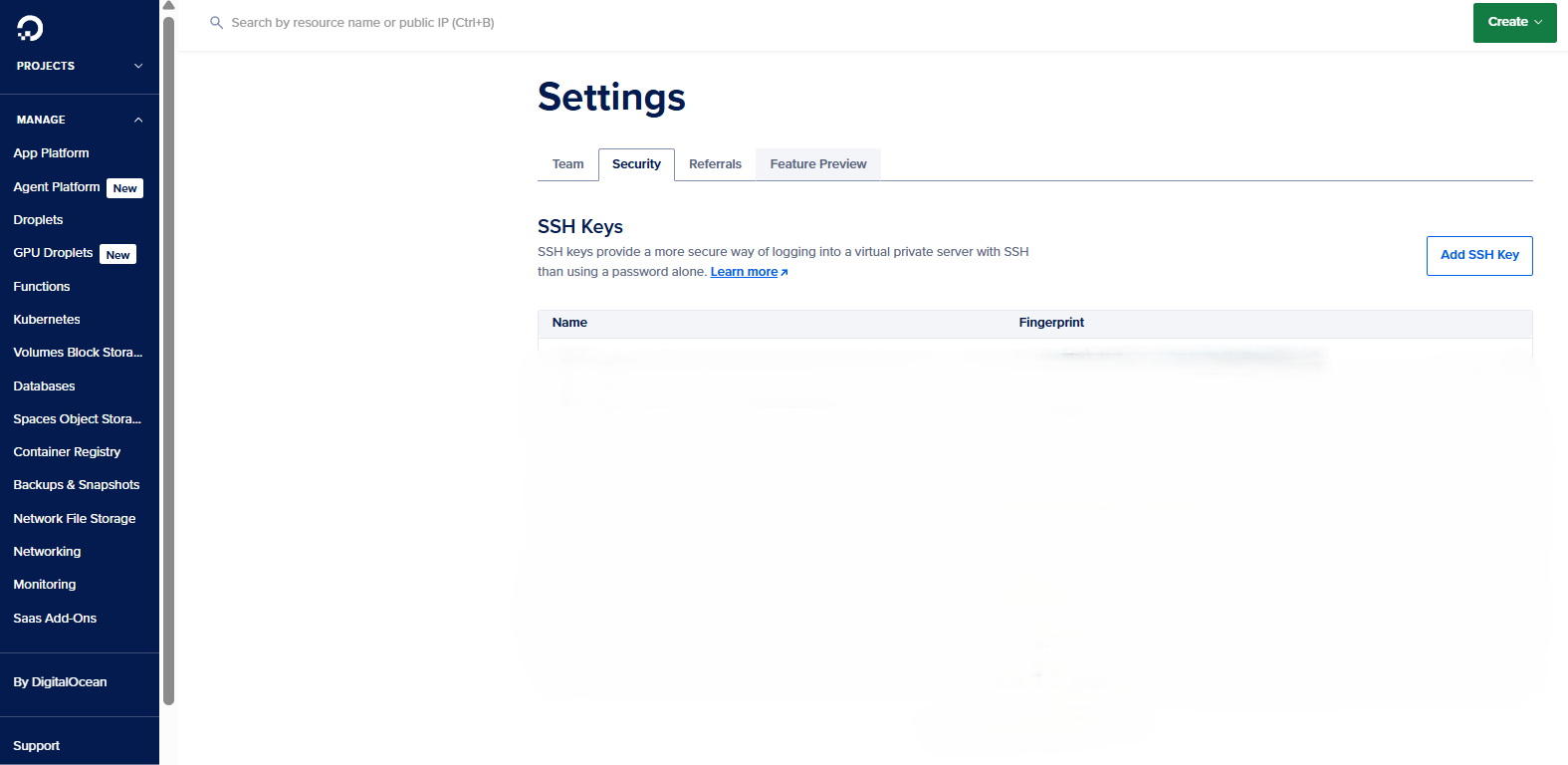
- Go to DigitalOcean Console → Settings → Security
- Click the SSH Keys tab
- Click Add SSH Key
Add These Details:
-
Name:
red5pro-ssh-key(or any meaningful identifier) -
SSH Public Key:
Open the.pubfile and paste the entire content into the field
(example begins withssh-rsa AAAAB3NzaC1yc2EAAAADAQABAAABAQ...) -
Click Add SSH Key
Example: